
“The best model isn’t the biggest one — it’s the one that fits your GPU like a glove.”
Why Run AI Locally? 🏠
Cloud AI is great — until you realize:
- 💸 Subscriptions add up — $20/month here, $30/month there
- 🔒 Privacy concerns — your data goes to someone else’s server
- 🌐 Internet dependency — no WiFi, no AI
- 🐌 Rate limits — “You’ve reached your limit, try again in 2 hours”
Running AI locally means your data stays on your machine, it’s free forever, and it works offline. The only cost? Your hardware — and knowing which model to pick.
That’s where LM Studio comes in. It’s the easiest way to download, run, and manage local LLMs on your PC.
The Golden Rule: VRAM Is King 👑
Before we dive into reading model specs, understand this one truth:
Your GPU’s VRAM determines what you can run.
Not your CPU. Not your RAM (mostly). Your VRAM.
Here’s why: LLMs need to load billions of parameters into memory to generate text. When those parameters fit entirely in your GPU’s VRAM, you get blazing fast inference (20-40+ tokens/sec). When they don’t fit, the model spills over to system RAM and runs on CPU — which can be 10–50× slower.
| VRAM | What Fits Comfortably |
|---|---|
| 4 GB | 1B–3B models only (very basic) |
| 6 GB | 3B–7B at Q4 quantization |
| 8 GB | 7B at Q4–Q5 quantization |
| 12 GB | 7B–14B models (sweet spot!) |
| 16 GB | 14B–22B models |
| 24 GB | 22B–34B models, or 70B at Q2 |
Understanding Model Parameters 🧠
When you see “7B” or “14B” in a model name, that’s the number of parameters (in billions). Think of it as the model’s “brain size”:
| Parameters | Intelligence Level | Example Models |
|---|---|---|
| 1B–3B | Basic assistant, simple Q&A | Qwen2.5-1.5B, Phi-3-mini |
| 7B–9B | Good all-rounder, solid coding help | Llama 3.1 8B, Qwen3.5 9B, Mistral 7B |
| 14B | Smart, great reasoning & coding | Qwen2.5-14B, DeepSeek-R1-Distill-14B |
| 32B–34B | Very capable, near cloud-level quality | Qwen2.5-32B, CodeLlama-34B |
| 70B+ | Top-tier intelligence, needs serious hardware | Llama 3.1 70B, Qwen2.5-72B |
The catch: Bigger brain = needs more VRAM. A 70B model needs ~40+ GB of VRAM at Q4 quantization. Unless you’ve got an RTX 4090 or dual GPUs, stick to models that fit your GPU.
Quantization: The Art of Compression 🗜️
Here’s the magic trick that lets you run massive models on consumer hardware: quantization.
Quantization reduces the precision of each parameter from 16-bit (FP16) to lower-bit formats, shrinking the model while keeping most of its intelligence.
| Quantization | Quality | Size Reduction | When To Use |
|---|---|---|---|
| FP16 | ★★★★★ Original | 1× (baseline) | Only if you have tons of VRAM |
| Q8_0 | ★★★★★ Near-perfect | ~0.5× | When model barely fits at FP16 |
| Q6_K | ★★★★☆ Excellent | ~0.4× | Best quality-to-size ratio |
| Q5_K_M | ★★★★ Very good | ~0.35× | Great balance |
| Q4_K_M | ★★★☆ Good | ~0.3× | Most popular — best bang for buck |
| Q3_K_M | ★★☆ Acceptable | ~0.25× | Squeezing in a bigger model |
| Q2_K | ★☆ Noticeable degradation | ~0.2× | Last resort, quality drops hard |
| IQ4_XS | ★★★ Good (imatrix) | ~0.28× | Advanced quantization, slightly better than Q3 |
Quick Rule of Thumb
Model file size ≈ VRAM needed
A 6.55 GB file needs roughly 6.55 GB of VRAM, plus ~1-2 GB extra for context overhead.
So if you have 12 GB VRAM, aim for model files ≤ 10 GB to leave room for context and system overhead.
Reading the LM Studio Model Page 📖
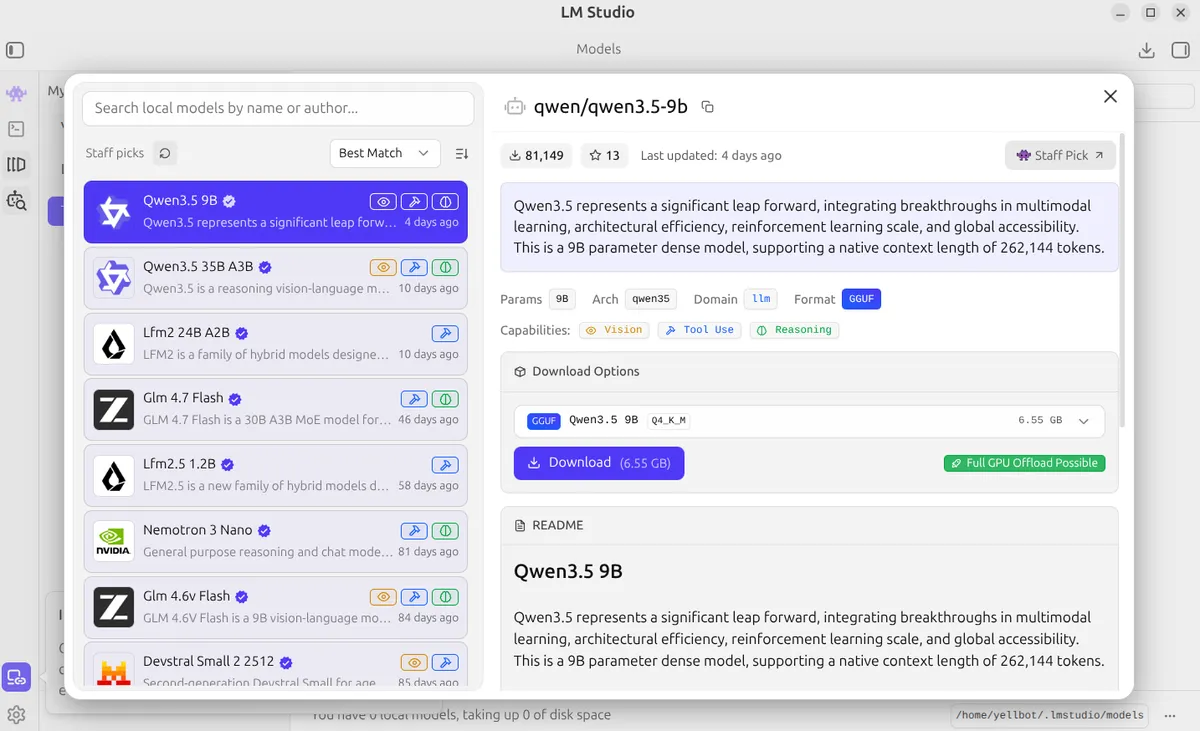
Let’s break down a real example from LM Studio. Here’s what you see when you click on a model:
Real-World Example: Is This Model Right for My PC?
Let’s take a real PC as an example and analyze whether Qwen3.5 9B Q4_K_M (6.55 GB) is a good fit:
| Component | Specs |
|---|---|
| CPU | Intel Core i5-14400F (16 threads) |
| RAM | 32 GB DDR |
| GPU | NVIDIA RTX 4070 (12 GB VRAM) |
Analysis:
- ✅ VRAM check: 6.55 GB model < 12 GB VRAM — fits with 5.45 GB to spare for context
- ✅ Full GPU Offload: Yes — all layers load into GPU, no CPU fallback
- ✅ Context headroom: Enough VRAM left for 8192+ context length comfortably
- ✅ Expected speed: 30–40+ tok/s on RTX 4070 — feels instant
- 🔥 Could even go bigger: With 12 GB VRAM, a 14B Q4_K_M (~9 GB) model would also fit with full GPU offload
Verdict: Qwen3.5 9B Q4_K_M is an excellent match for this setup — fast, smart, and leaves room to bump up context length. You could even try 14B models for extra intelligence.
Now let’s understand each section of this model page:
Top Stats Bar
| Indicator | What It Means |
|---|---|
| ⬇️ Download count (e.g., 81,149) | Popularity — higher means more battle-tested and trusted |
| ⭐ Stars (e.g., 13) | Community endorsement and favorites |
| 🕐 Last updated | How fresh the model is — newer usually means better optimized |
| 🏷️ Featured / Staff Pick | Selected by the LM Studio team — strong quality signal |
Model Metadata Tags
| Tag | What It Tells You |
|---|---|
Params (e.g., 9B) | Brain size — bigger = smarter but needs more VRAM |
Arch (e.g., qwen35) | The architecture family (Qwen, Llama, Mistral, etc.) |
Domain (e.g., llm) | Type of model — llm for text, could also be vlm for vision+language |
Format GGUF | ✅ This is what you want! GGUF is the optimized format for local running |
Capability Badges
These colored badges tell you what the model can do beyond basic chat:
| Badge | Meaning | Use Case |
|---|---|---|
| 👁️ Vision | Can understand images you upload | Describe photos, read screenshots, analyze diagrams |
| 🔧 Tool Use | Can call functions and external tools | API integration, structured output |
| 🧠 Reasoning | Enhanced step-by-step thinking | Math, logic, coding, complex analysis |
Download Options — ⚠️ THE MOST IMPORTANT SECTION
This is where the actual decision happens:
| |
See the 👍 like button next to a quantization? That’s LM Studio’s “Safe & Balanced” recommendation. It highlights the version that leaves plenty of VRAM headroom for your operating system and a large context length. It’s playing it safe.
But what if you want to push your hardware to the limit? That’s where the Green Rocket comes in.
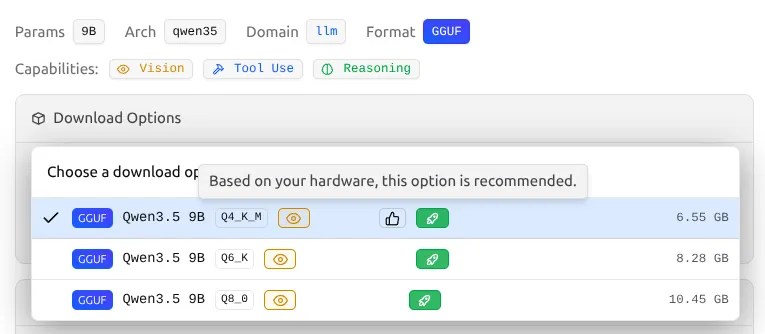
Breaking it down:
- GGUF — The file format (quantized, ready to run locally)
- Q4_K_M — The quantization level (see the table above)
- 6.55 GB — This is roughly how much VRAM you’ll need
🚀 The Green Rocket Badge: “Full GPU Offload Possible”
This is the single most important indicator for your experience:
When you select a quantization, look closely at the green badge that appears next to it.
| Badge | Meaning | Your Action |
|---|---|---|
| 🟢 Green Rocket Icon | Entire model fits in your VRAM | ✅ Download it! Fast inference guaranteed |
| 🔵 Blue “Partial” Icon | Some layers run on CPU | ⚠️ Will be noticeably slower |
| 🔴 Red “Likely too large” | Exceeds available system memory | ❌ Skip — Not recommended |
For example, on an RTX 4070 with 12GB VRAM, the Qwen3.5 9B Q8_0 (10.45 GB) model still shows the green rocket. This means yes, your PC can run the near-perfect Q8_0 version with full GPU acceleration, because 10.45 GB still comfortably fits under your 12 GB limit!
Always chase the green rocket. If a model doesn’t show it, either pick a smaller quantization or a smaller model.
Here’s how to pick the perfect model in under 2 minutes:
| |
My Recommended Models by Hardware Tier 🎯
💚 Budget (6–8 GB VRAM) — RTX 3060 8GB, RTX 4060
| Model | Quant | Size | Best For |
|---|---|---|---|
| Qwen2.5-7B-Instruct | Q4_K_M | ~4.5 GB | General chat |
| Llama-3.1-8B-Instruct | Q4_K_M | ~5 GB | All-rounder |
| Phi-4-Mini-3.8B | Q6_K | ~3 GB | Fast responses |
| DeepSeek-Coder-6.7B | Q4_K_M | ~4 GB | Coding |
💛 Mid-Range (12 GB VRAM) — RTX 3060 12GB, RTX 4070
| Model | Quant | Size | Best For |
|---|---|---|---|
| Qwen3.5-9B | Q4_K_M | ~6.5 GB | 🏆 Best all-rounder |
| Qwen2.5-14B-Instruct | Q4_K_M | ~9 GB | Smarter chat |
| Qwen2.5-Coder-14B | Q4_K_M | ~9 GB | Best coding |
| DeepSeek-R1-Distill-14B | Q4_K_M | ~9 GB | Math & reasoning |
| Llama-3.1-8B-Instruct | Q6_K | ~6.5 GB | High quality general |
💜 High-End (16–24 GB VRAM) — RTX 4080, RTX 4090, RTX 3090
| Model | Quant | Size | Best For |
|---|---|---|---|
| Qwen2.5-32B-Instruct | Q4_K_M | ~20 GB | Near cloud-level quality |
| DeepSeek-R1-Distill-32B | Q4_K_M | ~20 GB | Best reasoning |
| Llama-3.1-70B | Q2_K | ~24 GB | Maximum intelligence (24GB GPUs only) |
| Qwen2.5-Coder-32B | Q4_K_M | ~20 GB | Best local coding |
LM Studio Settings That Matter ⚙️
After downloading a model, these settings will make or break your experience:
GPU Offload
Set this to max (all layers). This ensures the entire model runs on your GPU instead of falling back to CPU.
Context Length
This is how much text the model can “remember” in a conversation.
| Context Length | VRAM Cost | Use Case |
|---|---|---|
| 2048 | Low | Short Q&A |
| 4096 | Medium | Normal conversations |
| 8192 | Higher | Long documents, coding |
| 16384+ | Very high | Only if you have VRAM to spare |
Tip: Start with 4096. If you get out-of-memory errors, reduce to 2048. If you have VRAM headroom, bump to 8192.
Temperature
Controls how “creative” vs “focused” the model’s responses are:
| Temperature | Behavior |
|---|---|
| 0.0 – 0.3 | Very focused, deterministic — best for coding & factual Q&A |
| 0.4 – 0.7 | Balanced — good for general chat |
| 0.8 – 1.0 | Creative, varied — good for writing & brainstorming |
How to Benchmark Your Model 📊
After loading a model, you want to verify it’s running well. Here’s what to check:
Tokens Per Second (tok/s)
LM Studio shows this in the bottom bar while generating. Here’s what the numbers mean:
| Speed | Rating | Meaning |
|---|---|---|
| 30+ tok/s | 🏆 Excellent | Feels instant — full GPU acceleration working perfectly |
| 15–30 tok/s | ✅ Good | Comfortable for real-time chat |
| 5–15 tok/s | ⚠️ Acceptable | Usable but noticeable delay |
| <5 tok/s | ❌ Too slow | Model probably spilling to CPU — try smaller quant |
Quick Benchmark Prompt
Try this prompt to test speed and quality in one go:
| |
If the response comes back quickly, is accurate, and well-formatted — you’ve found your model. 🎉
Common Mistakes to Avoid ❌
Downloading the biggest model — A 70B model at Q2 is worse than a 14B at Q6. Quality trumps size when quantized too aggressively.
Ignoring the green badge — If LM Studio says “Partial GPU Offload”, your experience will suffer. Always aim for “Full GPU Offload Possible”.
Setting context too high — Context length eats VRAM. A 32K context on a 12GB GPU with a 9B model will crash.
Not testing multiple models — Different models excel at different tasks. The “best” model depends on YOUR use case.
Forgetting to update — Model creators release new quantizations and fixes often. Check for updates.
TL;DR Cheat Sheet 📋
For those who just want the answer:
| |
Now go forth and run AI on your own hardware — no subscriptions, no rate limits, no cloud dependency. Just you and your GPU, making magic happen. 🚀